How to control location sharing
Turn live sharing on or off and understand when other meetup members can see your position.
Quick answer
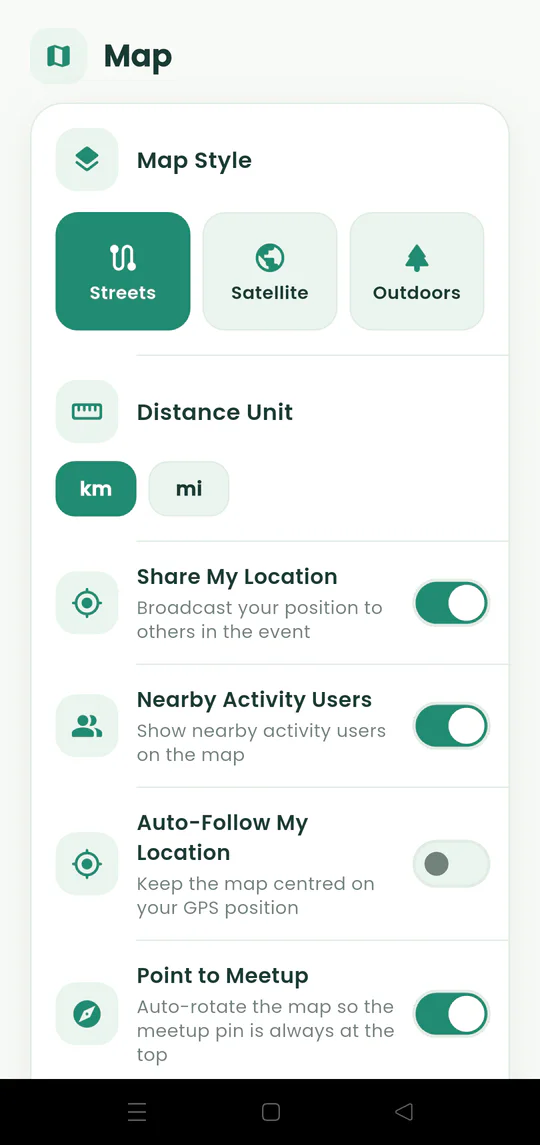
Open Settings and use Share My Location. Turning it off stops your live position from appearing while you can continue using the meetup and chat.
Walkthrough
Follow these steps
- 01
Open Settings
Tap the gear from the map.
- 02
Find Share My Location
The switch controls whether your current position appears to the active meetup.
- 03
Turn it off whenever you choose
Your live movement stops appearing without forcing you out of the event.
- 04
Leave when finished
Leaving the meetup also stops your participation and location sharing.

Ready to try it?
Start a meetup on Android and send one link to everyone else.